
Cogniti can interface with Brightspace LMS through LTI 1.3 and API.
LTI 1.3 #
The LTI 1.3 connection allows Cogniti agents, interactive mini-apps, and sandboxes to be embedded into Brightspace for seamless access by students.
Register the tool #
In Brightspace’s External Learning Tools configuration, under LTI Advantage, add a New Deployment.

Click the question mark icon next to the Tool dropdown, and click Register.
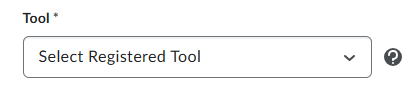
In the tool registration page, click Register Tool.

Register as a Standard Registration.
- Enabled: tick
- Name: For example, Cogniti
- Domain: https://app.cogniti.ai
- Redirect URLs: https://app.cogniti.ai/lti/launch
- OpenID Connect Login URL: https://app.cogniti.ai/lti/login
- Target link URI: https://app.cogniti.ai/lti/launch
- Keyset URL: Please contact us, or view this in your organisation administration screen in Cogniti. It will be typically in the form of https://app.cogniti.ai/lti/jwks/<organisation_id>. Each organisation has its own key.
- Extensions:
- Enable Names and Role Provisioning Services
- Roles: tick Send Institutional Role
- Substitution Parameters
- course_id=$CourseOffering.sourcedId
- course_name=$CourseOffering.title
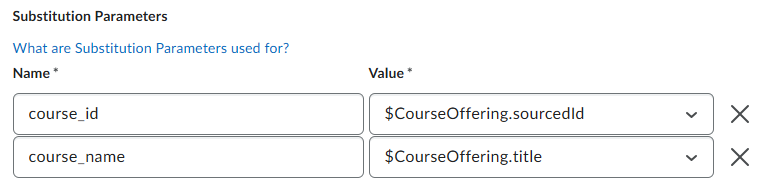
- Custom Parameters
- domain=brightspace.domain.here

Depending on your how your institution manages identities, emails, etc, you may need to configure optional additional substitution or custom paramters.
- Optional parameters (note no whitespaces):
- override_uid_prefix – only use this if the default email address that Brightspace sends to Cogniti is not the same as Cogniti receives from other login providers. This setting overrides the part of the email before the ‘@’
- For example: override_uid_prefix=$User.username
- Another example: override_uid_prefix=$Person.sourceId
- Note: if an ‘@’ symbol exists in the value sent from Brightspace, Cogniti internally will take the part before the ‘@’ symbol as the override prefix
- override_uid_suffix – only use this if the default email address that Brightspace sends to Cogniti is not correct. This setting overrides the part of the email after the ‘@’
- For example: override_uid_suffix=$Person.email.primary
- Note: if an ‘@’ symbol exists in the value sent from Brightspace, Cogniti internally will take the part after the ‘@’ symbol as the override suffix
- override_uid_prefix – only use this if the default email address that Brightspace sends to Cogniti is not the same as Cogniti receives from other login providers. This setting overrides the part of the email before the ‘@’
Click Register.
A dialog will appear with registration details. Note all of these down somewhere safe.
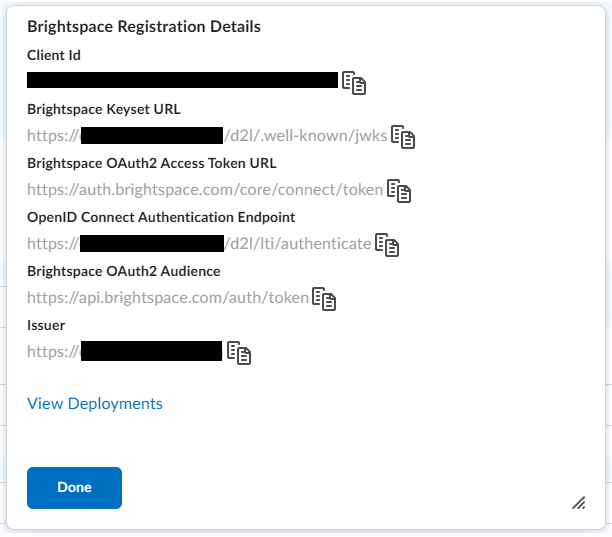
Click View Deployments.
Add a deployment #
In Brightspace’s External Learning Tools configuration, under LTI Advantage, add a New Deployment.

- Enabled: tick
- Tool: select the registration created above
- Name: For example, Cogniti LTI
- Extensions:
- Tick Names and Role Provisioning Services
- Share with the tool:
- User name
- Classlist including users not known to this deployment
- Make tool available to: select the appropriate org unit(s)
Click Create Deployment.
Note down the deployment ID.
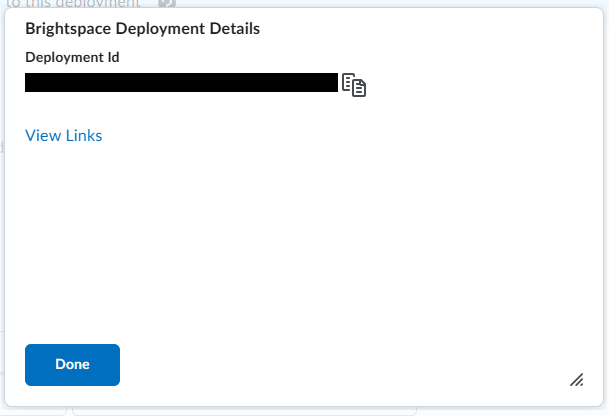
Click View Links.
Create a link for basic launch, insert stuff, and/or quicklink #
View the links for the deployment created above. Click New Link.

- Enabled: tick
- Name: for example, Cogniti LTI
- URL: https://app.cogniti.ai/lti/launch
- Type – pick one of the below. You will need to create a new link for each type
- Basic Launch – Basic launch to Cogniti; these connections do not copy over when a course is copied
- Deep Linking Quicklink – deep link to a Cogniti artefact via Quicklink (Content – Existing Activities). Cogniti will show an interface which allows the user to discover and select one artefact with a link placed in Content.
- Deep Linking Insert Stuff – deep link to a Cogniti artefact via Insert Stuff in the HTML editor. Cogniti will show an interface which allows the user to discover and select one artefact to embed into the HTML page.
Ensure you Save.
You will need to create separate links for each launch type, which will determine how users can insert Cogniti assets into Brightspace.
API (experimental) #
The API connection allows Cogniti to connect to Brightspace on behalf of a user and pull resources such as files, Brightspace page content, and assignment descriptions and rubrics. These resources can be used to improve the accuracy of AI agent responses.
In Brightspace’s Admin Tools, select Manage Extensibility.
Under the OAuth 2.0 tab, click Register an app.

- Grant type: Authorization
- Application name: Cogniti
- Redirect URI: https://app.cogniti.ai/connect/d2l
- Scope: users:own_profile:read enrollment:own_enrollment:read organizations:organization:read content:toc:read content:modules:readonly content:topics:readonly content:file:read dropbox:folders:read
- Tick Prompt for user consent, Enable refresh tokens, and I accept the API Developer Agreement.
Click Register.
Save the Client ID and Client Secret and send this to your Cogniti admin support team for configuration, along with the URL of your Brightspace instance.


