This article applies to:
✅DIY, self-hosted instances of Cogniti
✅Cogniti via Microsoft Marketplace Managed Application
It does not apply to:
⛔Cogniti on SaaS (this is managed for you)
If you control your own instance of Cogniti, you can try the steps below to help improve Cogniti performance.
It’s important to figure out what is making Cogniti run slower than expected.
Improving performance of AI inference #
Your AI model(s) likely have a requests-per-minute and tokens-per-minute limitation for each deployment. These can be adjusted through the Azure Portal by looking at Microsoft Foundry portal. For example, you may need to increase the TPM:

For more information, please visit these Microsoft Learn docs:
- https://learn.microsoft.com/en-au/azure/foundry/openai/quotas-limits
- https://learn.microsoft.com/en-us/azure/foundry/how-to/quota
Improving application performance #
For Cogniti via the Marketplace Managed Application, the default is to run one Azure Container Apps replica that has 1 vCPU and 2 gb RAM. This is sufficient for very light test usage.
For production usage, we recommend increasing the replica count and size. This can be done by making a new revision (see the Microsoft Learn docs for how).
Our recommendation for a performant production environment is:
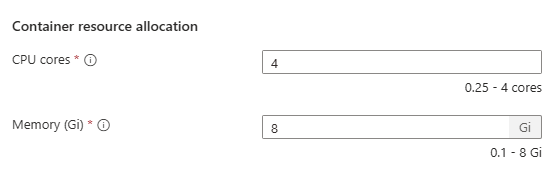
- Each container to have at least 3-4 vCPUs and 8 gb RAM
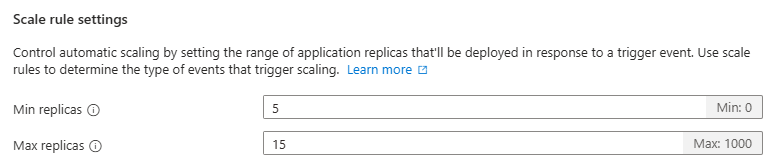
- At least 4-5 for min replicas and up to 20 max replicas
Steps to create a new revision #
- Open your Azure Container App for Cogniti and click Application then Revisions and replicas.
- Click Create new revision:

- In the Container tab, click the container image, and update the Container resource allocation. For example:
- Click Save.
- Then in the Scale tab, update the Min replicas and Max replicas under Scale rule settings. For example:
- Click Create.
Improving database performance #
The superuser portal allows you to check and ensure database indexes are set up correctly. To access the superuser portal, click the Admin cog in the menu bar:

Then, click into the Database tab. Check if there are any missing indexes; for example:

Click Create missing indexes. This operation is safe to perform in production in-flight environments.
Once Cogniti has ensured indexes, the status message will update. For example:



