
Note: Agent 3D avatars need to be enabled by your organisational administrator.
What are 3D avatars for agents? #
It allows your agent to show up as an animated 3D avatar that can synthesise and recognise speech, change ‘mood’, and engage in eye contact.
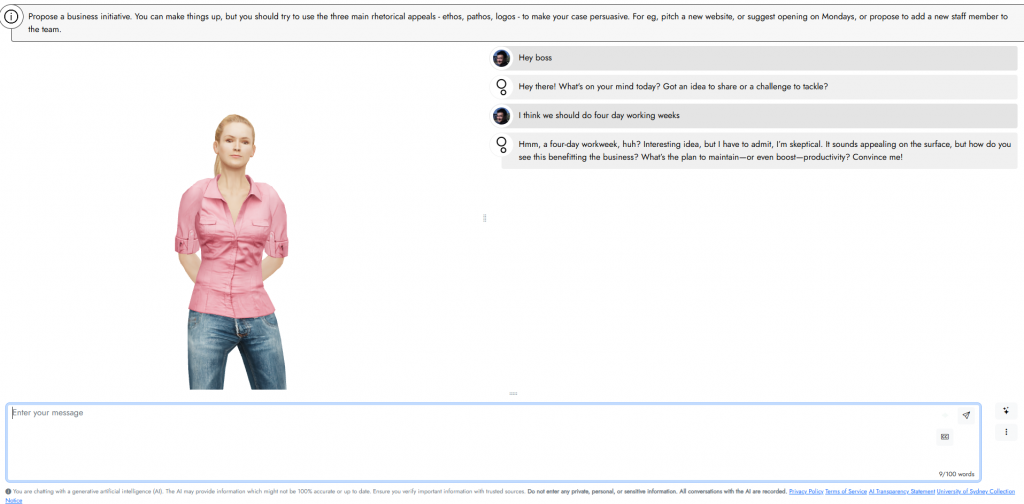
Enabling 3D avatars for an agent #
In your agent edit screen, click the Plugins tab.
You will need to toggle to Enable speech and Enable 3D avatar. Speech is a requirement for the 3D avatar.

Configure speech #
Ensure you configure the speech settings correctly, especially the voice and the expected language(s) to be recognised.
Configure 3D avatar #
You can choose from one of the available avatar models.
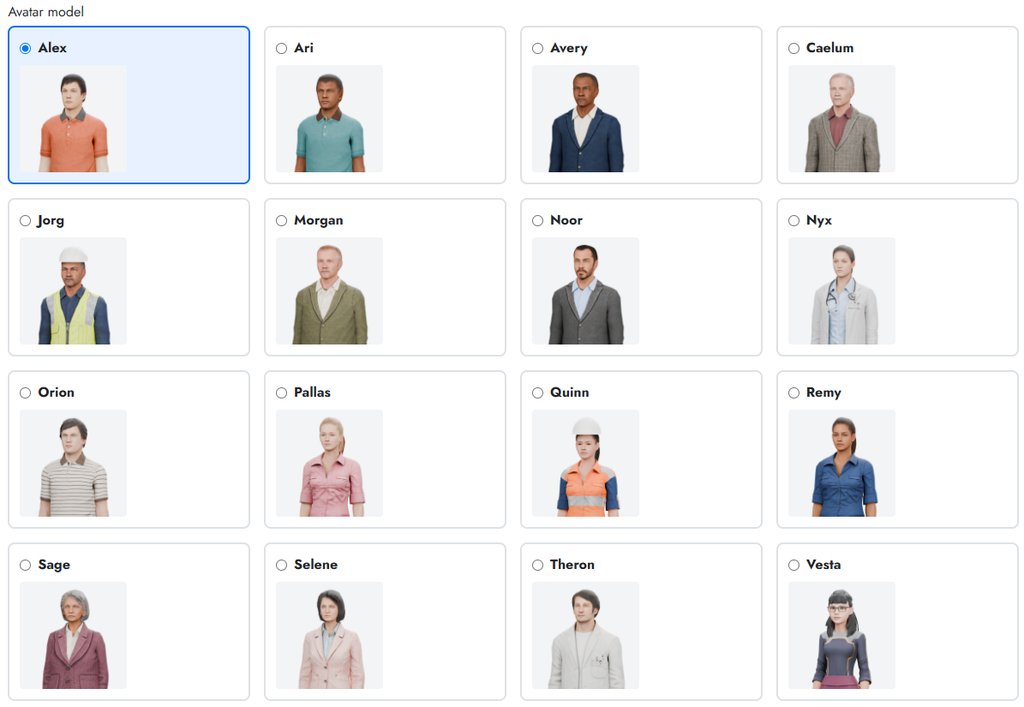
You can also define a default ‘mood’ for the avatar. The mood leads to subtle differences in the avatar’s facial expression and body language. You can also choose to allow the avatar to have dynamic moods – this will be determined by the AI model while it converses with the user.
You can also allow your avatar to strike a set of poses and gestures such as folding its arms or shaking its head.
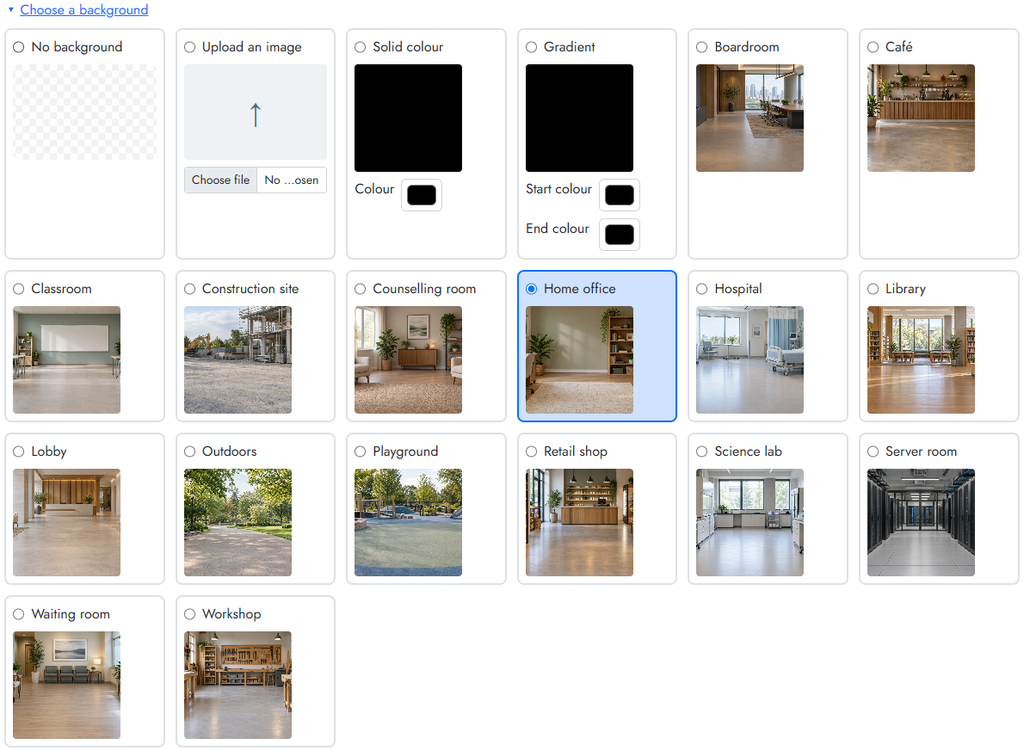
You can also pick a background from a range of provided images or colours/gradients or upload your own. To select a background, click the Choose a background link.
You can specify a camera angle. To mitigate inappropriate use, users cannot change the camera angle.
If you’d like to specify eye contact and lighting colours and intensity, as well as control how the avatar places on the screen, expand the advanced settings.
Click Save agent, and then preview your agent with its 3D avatar.


