Interactive mini apps are already pretty powerful by themselves, but you can also allow your mini app to engage with AI to provide live, reasoned responses to students. One way is to link a pre-existing agent into your Interactive. Another way is to activate and use AI functions in your mini app.
This article describes how to use AI functions.
Activate AI functions #
In the Advanced tab, toggle Enable AI functions.
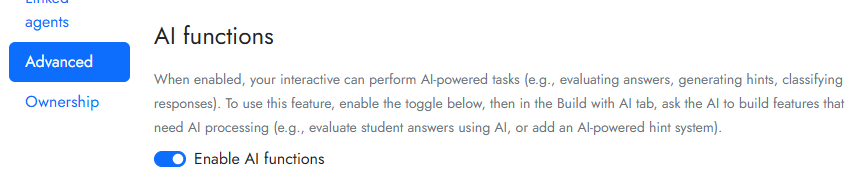
A toast message will pop up in the bottom right of the screen to say that AI functions are enabled.
Add AI responses to your mini app #
As with the build of your mini app itself, you add AI responses by talking with your AI builder.
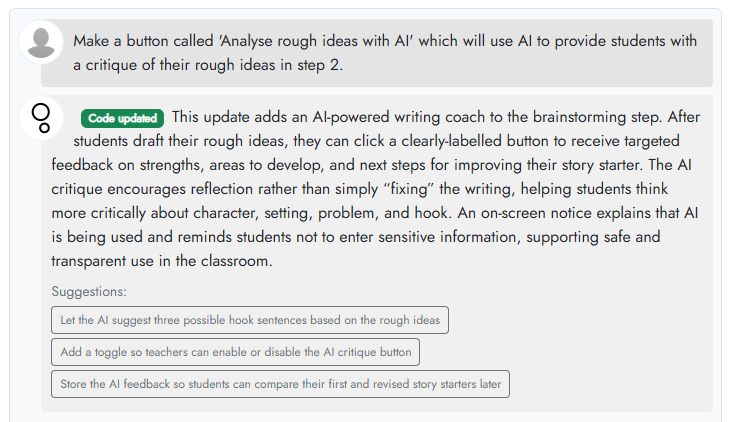
In the Build with AI tab, enter something you’d like an AI response for. For example, in a mini app where students need to come up with story ideas, you might tell the AI builder: “Make a button called ‘Analyse rough ideas with AI’ which will use AI to provide students with a critique of their rough ideas in step 2.”

The AI builder will then think about your request and create the code necessary to run this. For example, the AI builder might respond to tell you what it has added:
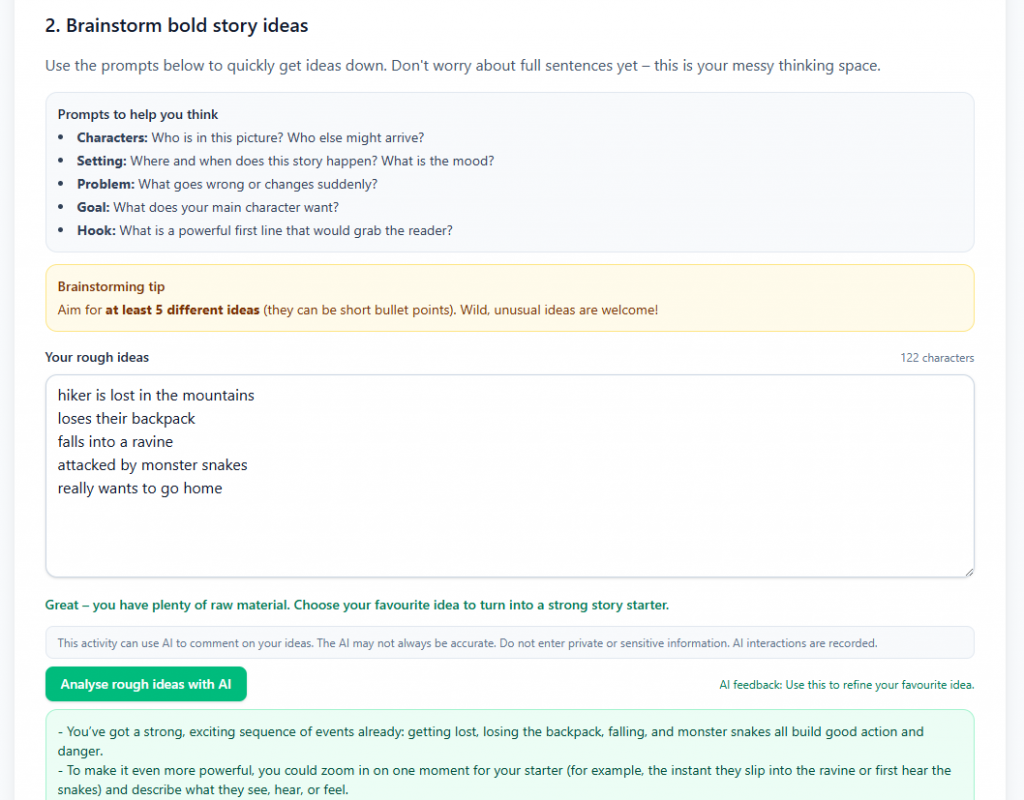
Here’s an example of a simple AI interaction the AI builder has added to this example mini app (the green ‘Analyse rough ideas with AI’ button alongside the AI responses.
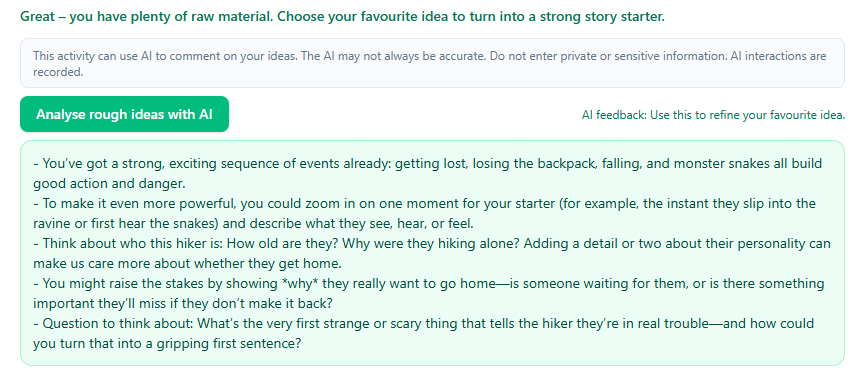
Here’s an example of what the AI function is giving back to the student.
If you are happy with this, remember to save your mini app. If not, keep chatting with the AI builder to refine what is collected, how the AI should respond, etc.
AI safety #
All interactions with AI functions are logged, and are afforded the same AI content safety filtering and flagging as are conversations with agents. The AI builder will automatically inject disclaimer text into your mini app when it builds the AI response function.
Check the AI functions that are active #
If you want a peek under the hood, you can check out the AI functions that are being used by going to the Advanced tab and looking at the Active AI functions. For example:
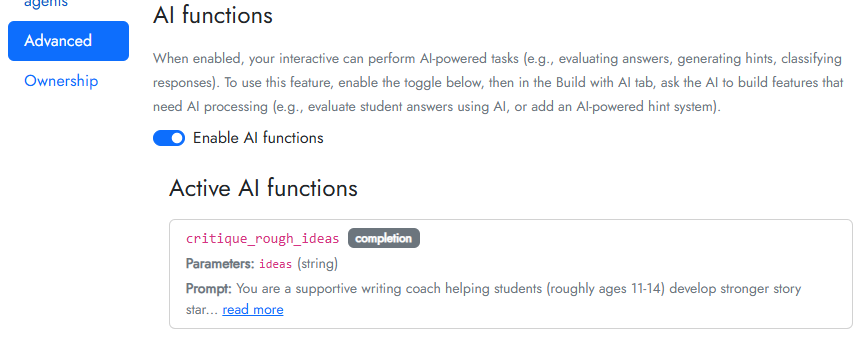
To view the full prompt that the AI function will be processing, click read more. You can chat with the AI builder to refine this if needed.


