By default, new users who are in your Cogniti organisation (i.e. tenancy) do not have the permission to create their own agents, mini-apps, or sandboxes.
To allow them to do so, an administrator needs to provision ‘agent quota’, ‘mini app quota’, or ‘sandbox quota’. This is so that users can be appropriately onboarded and trained in how to create and use them well.
Use claim codes to allow users to claim quota #
Cogniti allows administrators to create ‘claim codes’ that allow users to redeem quota themselves. Each claim code can only be used once. Claim codes are a great way to allow users to gain access to asset creation in Cogniti without needing manual provision, for example during a training session.
As an organisation administrator, enter the organisation edit screen. Navigate to the Claim codes tab. Click the Create code button.
Enter a code, and the quota to be added when users redeem the code.
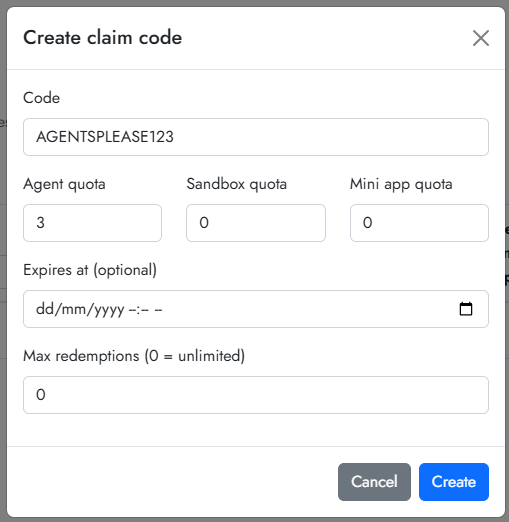
Set an optional expiry date and max number of redemptions. Click Create.
This will be created and appear in the table of claim codes.
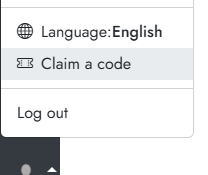
If users wish to use the code, all they need to do is click their user image in the bottom left of the menu bar, select the Claim a code option, and then enter the code.
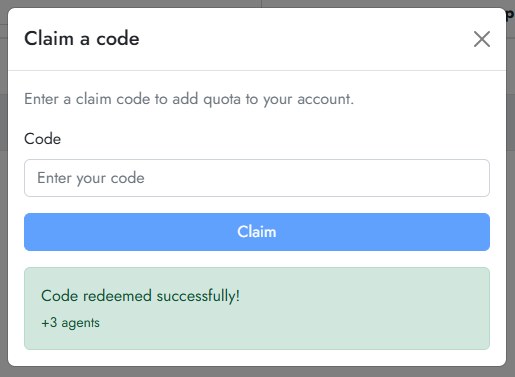
Once they claim a code, they will see what they have redeemed. If they are currently on an agent, mini-app, or sandbox page, they may need to refresh the page to see this updated.
Provision quotas manually #
To provision quotas, navigate to the users screen by clicking the users button on the main menu bar.

Find the user for whom you wish to provision quota.
Agent quota #
Click the number in the Agent quota column for the user. A textbox will appear. Enter a new agent quota (numerical) and press enter on your keyboard. A confirmation popup will appear if this is successful.

Mini-app quota #
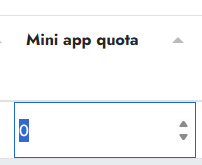
Click the number in the Mini app quota column for the user. A textbox will appear. Enter a new quota (numerical) and press enter on your keyboard. A confirmation popup will appear if this is successful.
Sandbox quota #
Click the number in the Sandbox quota column for the user. A textbox will appear. Enter a new sandbox quota (numerical) and press enter on your keyboard. A confirmation popup will appear if this is successful.


