Note: Speech synthesis and speech recognition need to be enabled by your organisational administrator.
The speech functionality in Cogniti allows your agent to ‘speak’ and also ‘listen’ to users.
Important considerations when using speech in Cogniti #
Cogniti uses speech synthesis and speech recognition AIs to speak and talk. These are in addition to the generative AI models that process and produce text as part of the conversation.
In a typical spoken conversation with a Cogniti agent, the user will speak into their device’s microphone. The speech recognition AI will recognise what is spoken and turn this into text, which is automatically inserted into the chat box. This text, which is essentially the user’s prompt, is then sent to the generative AI model that produces a text-based completion. The speech synthesis AI then converts this text-based completion into spoken audio, played through the audio output on the user’s device.
Because there are multiple processing steps, the conversation will not feel 100% natural.
What about multiple languages? #
The speech synthesis and recognition AIs that Cogniti uses can handle multiple languages for input (recognition) as well as output (synthesis).
The speech recognition AI is only able to parse multiple languages when they are in separate sentences. They will find it difficult to parse speech which has multiple languages within one sentence.
The speech synthesis AI can sometimes parse multiple languages within one sentence. Ensure you select a multilingual ‘voice’ for speech synthesis if you would like multilingual output.
Enable speech in Cogniti #
In your agent configuration screen, navigate to the plugins tab. Toggle the Use speech option.

Choose an output voice from the dropdown.

Then choose some language(s) that you would expect the user to speak in. Setting this helps the speech recognition AI prepare for particular candidate languages.

Can I hide the conversation history? #
In some situations, it may be desirable to hide the conversation history/transcript from students, such as for some language learning agents. Note that disabling the display of the conversation history may pose accessibility challenges.
To modify the conversation history display, click the Styling tab in your agent. Then select from one of the Conversation history display options.
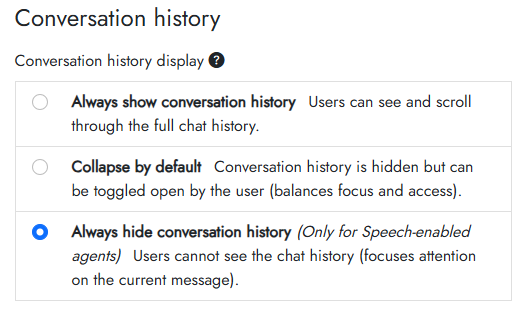
- Always show conversation history: Users can see and scroll through the full chat history
- Collapse by default: Conversation history is hidden but can be toggled open by the user (balances focus and access)
- Always hide conversation history: (this is only available for agents where speech has been enabled) Users cannot see the chat history (focuses attention on the current message)


