Interactive mini apps are custom-built, browser-based learning activities (e.g. quizzes, simulations, games, visualisations, and more) that you create simply by describing what you want in plain language. An AI assistant generates the complete mini app for you; no coding required.
Students access your interactive mini apps and engage with them directly in the browser.
Why use interactive mini apps? #
- No technical skills needed. Describe what you want; the AI builds it.
- Tailored to your course. Every mini app is designed to your exact specification, for your students, in your subject area.
- Rich and engaging. Go beyond static content — create drag-and-drop activities, physics simulations, 3D visualisations, educational games, interactive charts, and more.
- Built-in analytics. Track how students interact with your mini app and ask natural-language questions about their progress.
- Iterate quickly. Ask the AI to make changes and see results in seconds. Refine until it’s exactly right.
Here’s a 1.5 minute silent video demonstrating mini apps in Cogniti.
What can you build? #
The AI assistant that helps you build your mini app has access to a range of specialised frameworks, so you can create surprisingly sophisticated activities. For example:
- Quizzes and assessments. Multiple-choice, fill-in-the-blank, matching, drag-and-drop
- Math and science. Equation rendering (LaTeX), projectile motion simulators, periodic table explorers
- Games. Platformers that teach multiplication, word puzzles, trivia games
- Simulations. Physics sandboxes, ecosystem models, predator-prey dynamics
- Data and charts. Bar charts, scatter plots, trend lines that update as students answer
- 3D visualisations. Geometry, interactive 3D scenes
Some examples #
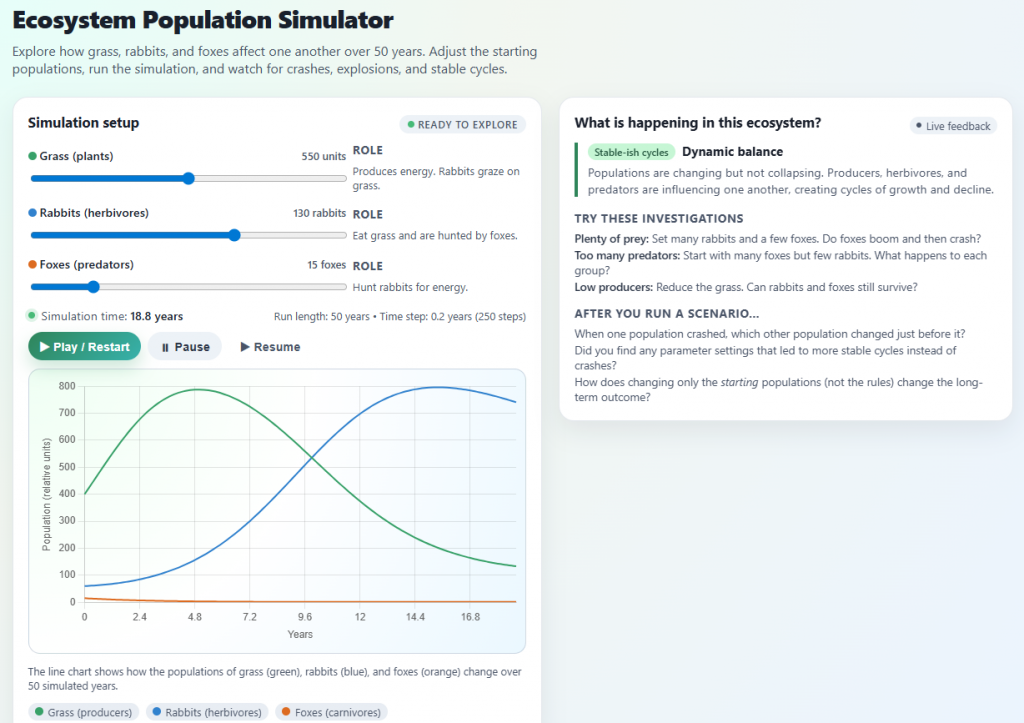
Ecosystem population simulator #
An animated environment where students set starting populations of grass, rabbits, and foxes, then press “Run” and watch population curves unfold over simulated years on a live chart. Demonstrates feedback loops, carrying capacity, and trophic cascades.
Built using the prompt: Build an ecosystem simulator with three species: grass, rabbits, and foxes. Students set initial populations with sliders and press Play. Show an animated line chart of populations over 50 years. Let them pause, adjust, and resume. Add a panel explaining what’s happening when a population crashes or explodes. Track which parameter combinations each student tries.
Rhetorical device spotter #
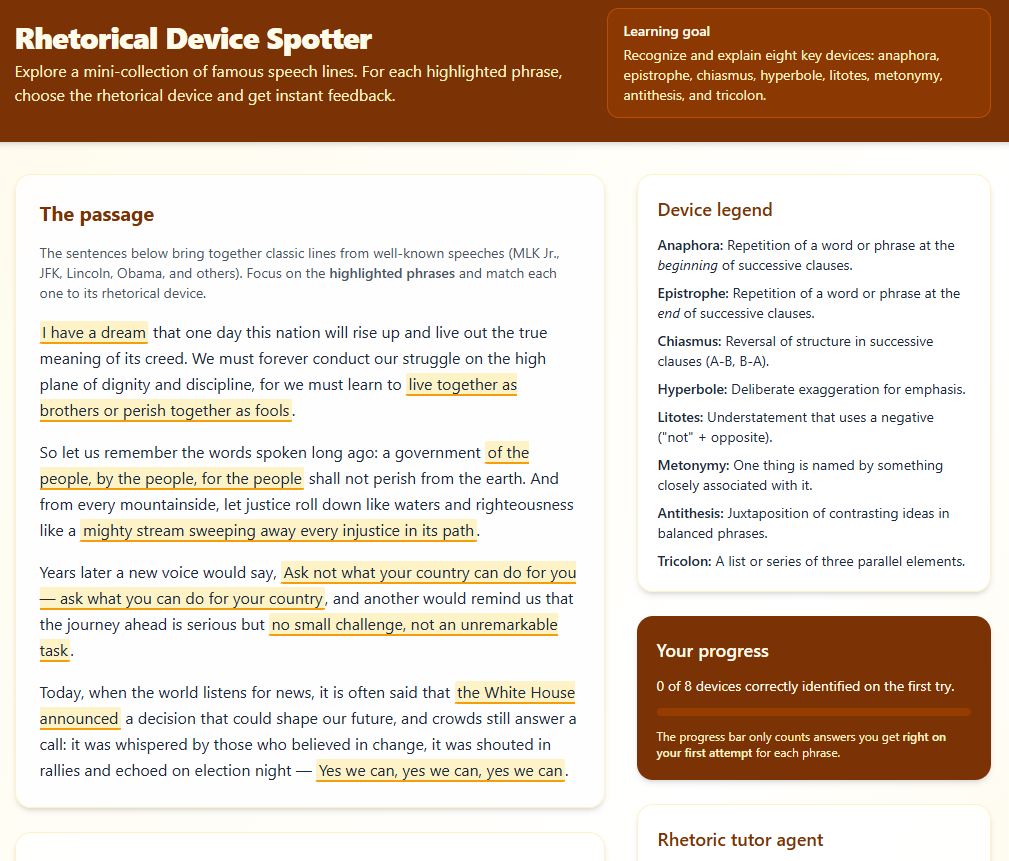
A passage of text appears with key phrases highlighted in different colours. Students identify the rhetorical device used in each highlight — choosing from a dropdown of options like anaphora, chiasmus, hyperbole, and litotes. An AI agent can provide explanations on request.
Built using the prompt: Create an activity that displays a famous speech passage with eight highlighted phrases. For each highlighted phrase, show a dropdown where the student selects the rhetorical device (options: anaphora, epistrophe, chiasmus, hyperbole, litotes, metonymy, antithesis, tricolon). Show feedback after each selection. Include the rhetoric tutor agent so students can ask for explanations or examples. Track which devices students identify correctly on the first try.
Emergency triage simulation #
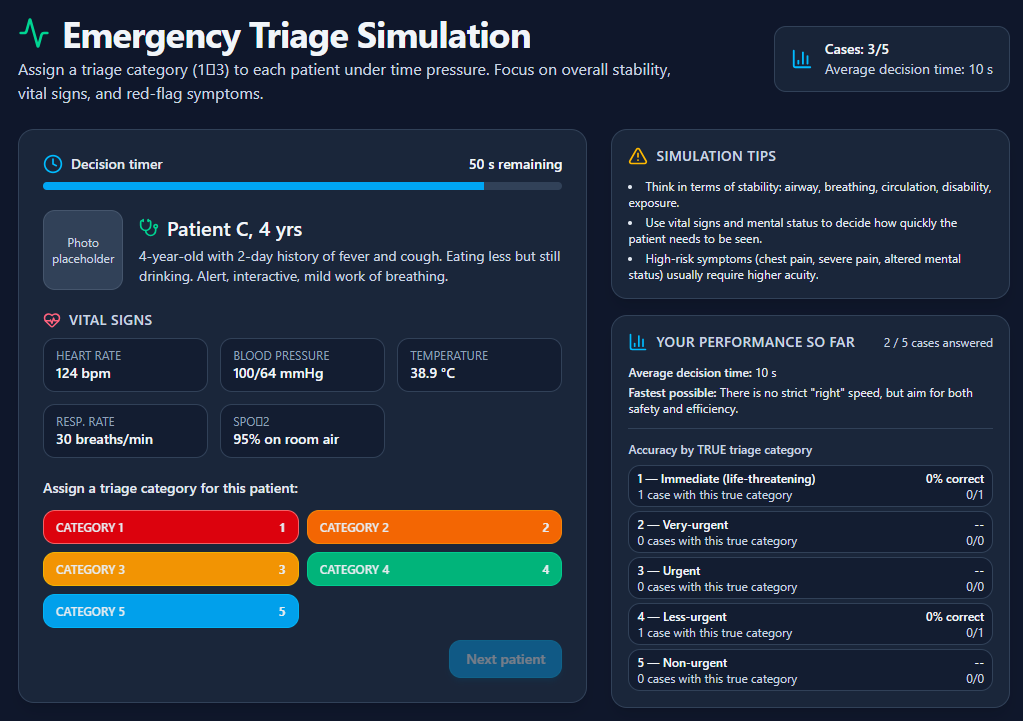
A simulated emergency department where patients arrive with varying symptoms. Students read vitals, review brief histories, and assign triage categories. Immediate feedback explains why a patient was over- or under-triaged. Builds clinical reasoning under time pressure.
Built with the prompt: Create an emergency triage simulation. Present five patients one at a time, each with a photo placeholder, a short history, and a set of vital signs (heart rate, blood pressure, temperature, respiratory rate, SpO2). Students assign each patient a triage category from 1 (immediate) to 5 (non-urgent). After each decision, show whether they were correct and explain the reasoning. Add a timer to simulate time pressure. Track accuracy per triage category and average decision time.
Frequently asked questions #
Do I need to know how to code?
No. You describe what you want in plain language and the AI generates everything. You can view the code in the Advanced tab if you’re curious, but you never need to touch it.
What if I don’t know what to say in a prompt?
Don’t worry – the AI builder can help you. Just describe your students’ context, your learning goals, and the AI will help you unpack some ideas.
What happens if I break something while refining?
Every version is saved automatically. Open the version history, select a working version, and save to restore it.
Can multiple teachers collaborate on an interactive mini app?
You can add additional admins in the Sharing tab who will have full editing access. If you allow it, others can also clone your mini app and adapt it.


