Cogniti can interface with Canvas LMS through LTI 1.3 and Canvas’ API.
LTI 1.3 #
The LTI 1.3 connection allows Cogniti agents, interactive mini-apps, and sandboxes to be embedded into Canvas pages for seamless access by students.
Add an LTI developer key #
In Canvas admin, select the Developer Keys menu item and add an LTI Developer Key.
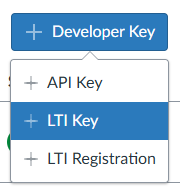
These are the important settings (the others you can decide for yourself):
- Redirect URIs: https://app.cogniti.ai/lti/launch
- Method: manual entry
- Target link URI: https://app.cogniti.ai/lti/launch
- OpenID connect initiation Url: https://app.cogniti.ai/lti/login
- JWK method: Public JWK URL
- Public JWK URL: Please contact us, or view this in your organisation administration screen in Cogniti. It will be typically in the form of https://app.cogniti.ai/lti/jwks/<organisation_id>. Each organisation has its own key. The key is only needed for LTI Advantage services (such as the Names and Roles Provisioning Services).
- LTI Advantage Services: enable ‘Can retrieve user data associated with the context the tool is installed in’ and ‘Can lookup Account information’
- Additional settings
- Icon URL: https://app.cogniti.ai/static/images/cogniti_logo_circles_icon.png
- Text: Cogniti
- Required custom fields (note no whitespaces):
- domain=$Canvas.api.domain
- course_id=$Canvas.course.id
- course_name=$Canvas.course.name
- Optional custom fields (note no whitespaces):
- override_uid_prefix – only use this if the default email address that Canvas sends to Cogniti is not the same as Cogniti receives from other login providers. This setting overrides the part of the email before the ‘@’
- For example: override_uid_prefix=$Canvas.user.loginId
- Another example: override_uid_prefix=$Canvas.user.sisSourceId
- Note: if an ‘@’ symbol exists in the value sent from Canvas, Cogniti internally will take the part before the ‘@’ symbol as the override prefix
- override_uid_suffix – only use this if the default email address that Canvas sends to Cogniti is not correct. This setting overrides the part of the email after the ‘@’
- For example: override_uid_suffix=$vnd.Canvas.Person.email.sis
- Note: if an ‘@’ symbol exists in the value sent from Canvas, Cogniti internally will take the part after the ‘@’ symbol as the override suffix
- override_uid_prefix – only use this if the default email address that Canvas sends to Cogniti is not the same as Cogniti receives from other login providers. This setting overrides the part of the email before the ‘@’
- Privacy level: public
- Placements
- Editor Button
- Module Menu
- Link Selection
Expand the Link Selection section, and set the Message Type as LtiDeepLinkingRequest. This allows deep linking of Cogniti content into Canvas as an external tool link in a module item.
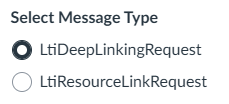
Click Save. Make a note of the client ID.
Configure the app #
After setting up the LTI developer key, you need to configure the app.
- In Canvas admin, select Settings from the menu and then Apps.
- Click View App Configurations
- Click + App
- Select By Client ID, and paste the client ID provided for the LTI Developer Key created above
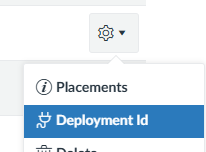
You will then need to obtain the Deployment Id. This will need to be provided to a Cogniti administrator for configuration, alongside your Canvas URL.
API #
The API connection allows Cogniti to connect to Canvas on behalf of a user and pull resources such as files, Canvas page content, and assignment descriptions and rubrics. These resources can be used to improve the accuracy of AI agent responses.
In Canvas admin, add an API Developer Key.
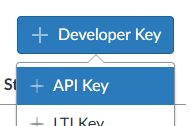
These are the important settings (the others you can decide for yourself):
- Redirect URIs: https://app.cogniti.ai/connect/canvas
- Icon URL: https://app.cogniti.ai/static/images/cogniti_logo_circles_icon.png
- Enforce scope
- Uncheck includes
- Scopes:
- url:GET|/api/v1/users/:id
- url:GET|/api/v1/courses
- url:GET|/api/v1/courses/:id
- url:GET|/api/v1/courses/:course_id/files
- url:GET|/api/v1/courses/:course_id/files/:id
- url:GET|/api/v1/files/:id
- url:GET|/api/v1/courses/:course_id/pages
- url:GET|/api/v1/courses/:course_id/pages/:url_or_id
- url:GET|/api/v1/courses/:course_id/assignments
- url:GET|/api/v1/courses/:course_id/assignments/:id
- url:GET|/api/v1/courses/:course_id/folders
- url:GET|/api/v1/courses/:course_id/modules
- url:GET|/api/v1/courses/:course_id/modules/:module_id/items
Make a note of the following, which will need to be provided to a Cogniti administrator for configuration:
- Canvas URL
- Client ID
- Client secret


