We are going to assume that you have made your agent or mini app available to students, for example through:
This guide provides some troubleshooting tips for when students cannot access what you have made available.
Check that it is published #
By default, things you create in Cogniti (e.g. agents, mini apps, sandboxes) start in Draft state. You can see the current state reflected in the button in the top right, for example:

To change the state, click on the button and choose one of the other states. To give students access, ensure the state is set to Published.
For mini apps, check that there is a live version #
Each itreation of a mini app is saved as a new version. This version is visible at the top of the Preview panel:

By default, Cogniti does not make a particular version live. You need to explicitly select Set as live for the selected version.
Check the access permissions #
Agents, mini apps, sandboxes, and other Cogniti artefacts have different layers of permission to allow fine-grained control of who can do what with the things you create.
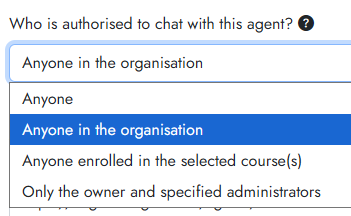
For agents, check the Chat access tab, especially the setting Who is authorised to chat with this agent?. Ensure the correct setting is selected (for example, to allow anyone in your organisation to access the agent, ensure that option is selected).
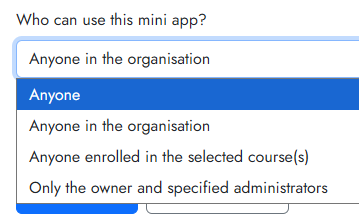
For mini apps, check the Access tab, especially the setting Who can use this mini app? Ensure the correct setting is selected (for example, to allow anyone using that instance of Cogniti to use the mini app, ensure that Anyone is selected).