Cogniti can interface with Blackboard LMS through LTI 1.3 and Blackboard’s API.
LTI 1.3 #
The LTI 1.3 connection allows Cogniti agents, interactive mini-apps, and sandboxes to be embedded into Blackboard for seamless access by students.
Add an LTI Tool Provider #
In Blackboard, navigate to Administrator Tools, locate the Integrations section and click LTI Tool Providers. Register an LTI 1.3/Advantage tool.
Enter the Client ID supplied by Cogniti. Contact us to obtain this if you do not already have it.
Most of the fields in Tool Status will be automatically populated, including the name, login URL, redirect URL, JWKS URL, issuer, and domains.
Set the Tool Status field to Approved.

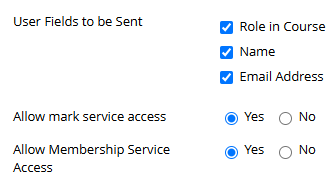
In Institutional policies, allow all user fields to be sent, allow mark service access, and allow membership service access.
Click Submit to save.
View the Deployments #
Click the menu button next to the Cogniti tool provider’s name. Choose Manage Deployments.
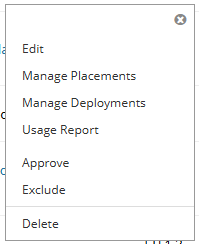
Take a note of the Default Deployment ID. You will need to send this to the Cogniti team to set up the connection.
Manage the Placements #
Click the menu button next to the Cogniti tool provider’s name. Choose Manage Placements.
Click Create Placement.

Enter a Label for the placement as well as a Handle.
Specify Availability to be Yes.
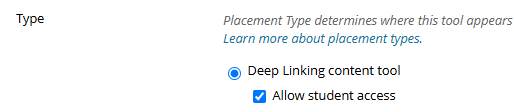
For Type, select Deep linking content tool and check Allow student access.
For Target Link URI, specify https://app.cogniti.ai/lti/launch
Click Submit to save.
API #
The API connection allows Cogniti to connect to Blackboard on behalf of a user and pull resources such as files, Blackboard page content, and assignment descriptions. These resources can be used to improve the accuracy of AI agent responses.
In Blackboard, navigate to Administrator Tools, locate the Integrations section and click REST API Integrations. Click Create Integration.
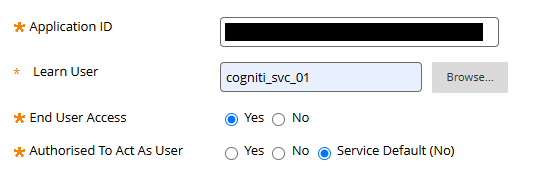
Enter the Application ID supplied by Cogniti. Contact us to obtain this if you do not already have it.
Specify a Learn User with no privileges. It is best to create a service account here. This user is not actually used because Cogniti uses three-legged OAuth, but Blackboard requires a user to be specified here. Select Yes for End User Access, and No for Authorised To Act As User. For example:
Click Submit to save.


