
Yes, as long as your LMS administrator has configured the LTI integration to allow Cogniti to do this. They need to have enabled something called ‘Names and Roles Provisioning Service’ which allows Cogniti to ask the LMS for a roster for the course in order to determine who is a genuine member of the course.
Connect your course #
For Cogniti to know about your course, you will need to first connect your course to Cogniti. This can be simply done by logging into your course in your LMS, and initiating the process of embedding an agent, sandbox, or mini app into the course as an LTI plugin. Here are some instructions for doing so:
- How do I embed a Cogniti agent into Canvas?
- How do I embed a Cogniti agent into Moodle?
- How do I embed an Interactive Mini App into my LMS?
Once you initiate the embedding process from your LMS course, this gives Cogniti the signal and the permission to start syncing the roster from that course.
Restrict access to course members #
In the Chat access tab for agents, or the Access tab for interactive mini apps, select Anyone enrolled in the selected course(s) from the dropdown.
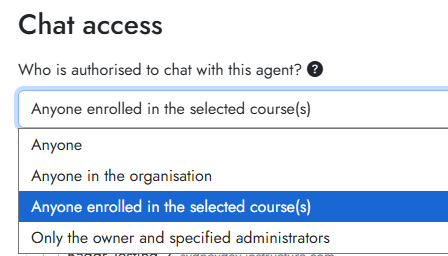
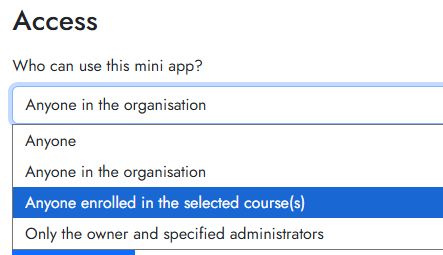
This will show a list of courses that Cogniti knows about, where you are a member. Select the course(s) that you wish to restrict access to.
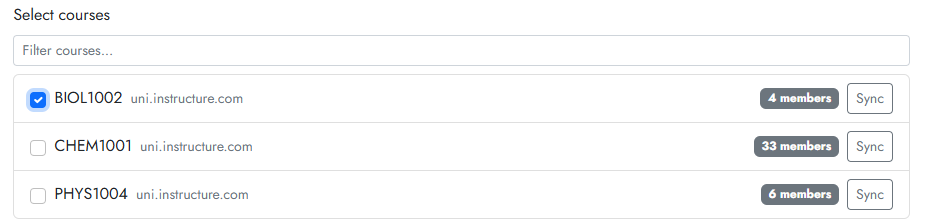
Remember to Save the agent or mini app.
Roster sync occurs automatically, but you can force a sync by pressing the Sync button.
Once this is set, Cogniti will check to see if a user is a member of the selected course(s). They will be able to load the agent or mini app when launched from within the LMS frame, and also when accessing the agent or mini app via its direct link.


