This article applies to:
✅Cogniti on SaaS
It does not apply to:
⛔Cogniti via Microsoft Marketplace Managed Application
⛔DIY, self-hosted instances of Cogniti
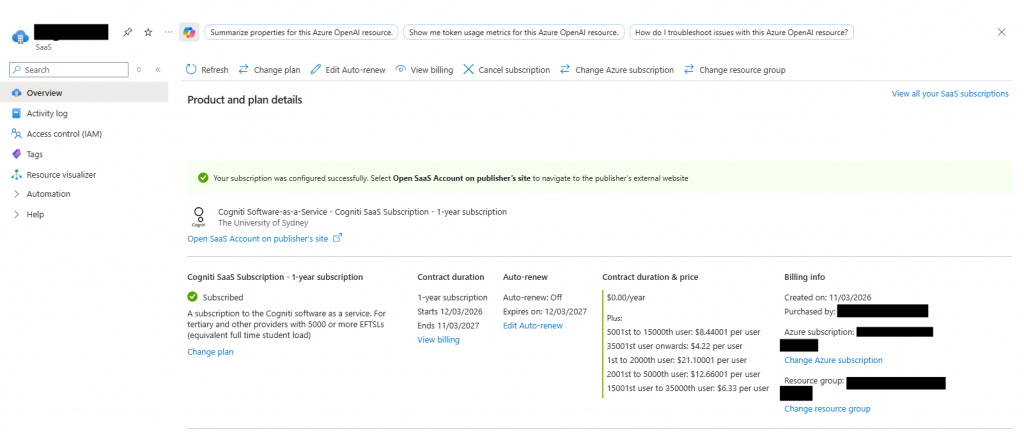
As an Azure administrator for your institution, you can subscribe to Cogniti software-as-a-service via the Microsoft Marketplace. This has a number of advantages:
- Cogniti is fully managed and supported for your institution and its people
- You may be eligible to draw down on your Microsoft Azure Consumption Commitment with the amount spent on Cogniti
- You don’t need to worry about managing your own Azure environment to run Cogniti
Subscriptions are on a yearly basis and there is a charge for the number of seats purchased. Subscription fees help us provide the service to your institution and its people, support your use of it, and keep building Cogniti to be even more useful for education.
Subscription models #
We operate under a stratified, bracket-based pricing model, with a decreasing cost per user as your institution progresses to higher tiers.
- 1st to 2,000th user
- 2,001st to 5,000th user
- 5,001st to 15,000th user
- 15,001st to 35,000th user
- 35,001st user onwards
The exact cost for each user is listed on the Microsoft Marketplace, which charges in US Dollars. Please note, the pricing is subject to change.
Costs and seat subscription brackets are determined by the institution type and size:
- For tertiary and other providers with 5,000 or more EFTSLs (equivalent full time student load), the subscription operates in blocks of 500 seats.
- For primary, secondary, and other providers with fewer than 5,000 EFTSLs, the subscription operates in blocks of 100 seats and there is a discount applied per user per year.
How to subscribe on Microsoft Marketplace #
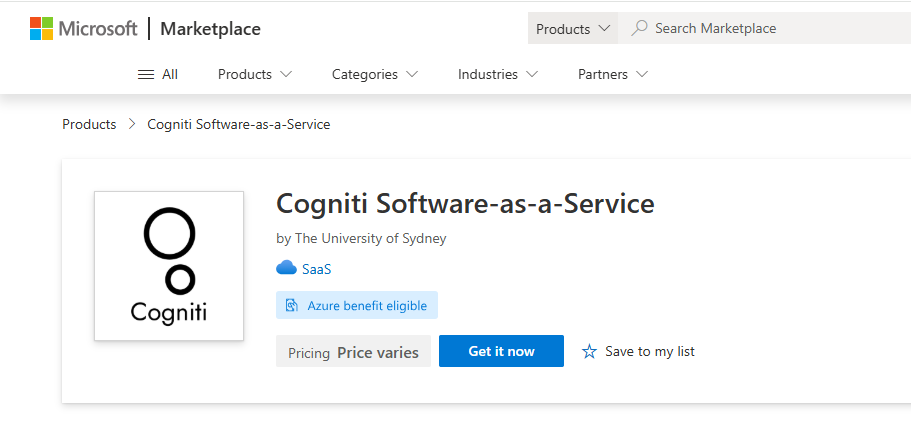
While logged in as an Azure administrator for your institution, access the Cogniti SaaS offer:
Review the options available and then click Get it now.
In the Azure Portal, choose your Azure subscription, resource group, and resource group location for the SaaS resource that will be created. Give it a name.
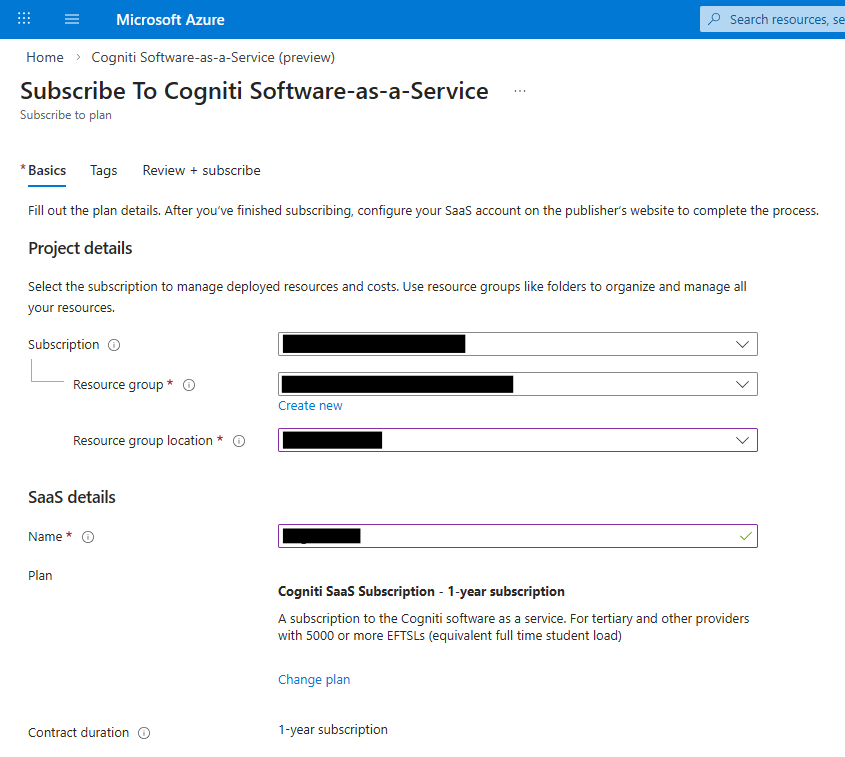
On this screen, you will also be able to toggle auto-renewal on or off, and review the prices again.
In the Review + subscribe step, check your contact details are correct, and click Subscribe.
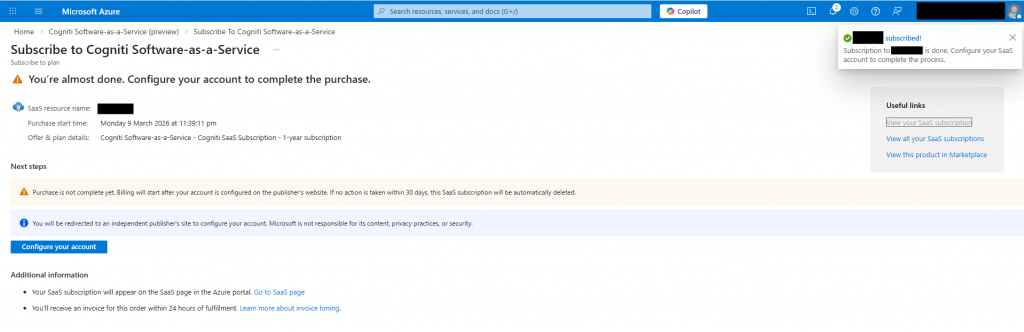
On the next screen, you will see some Next steps. Click the Configure your account button – this will take you into Cogniti itself so that we can help complete the setup of your subscription.
In Cogniti, you will see a Cogniti marketplace setup screen.
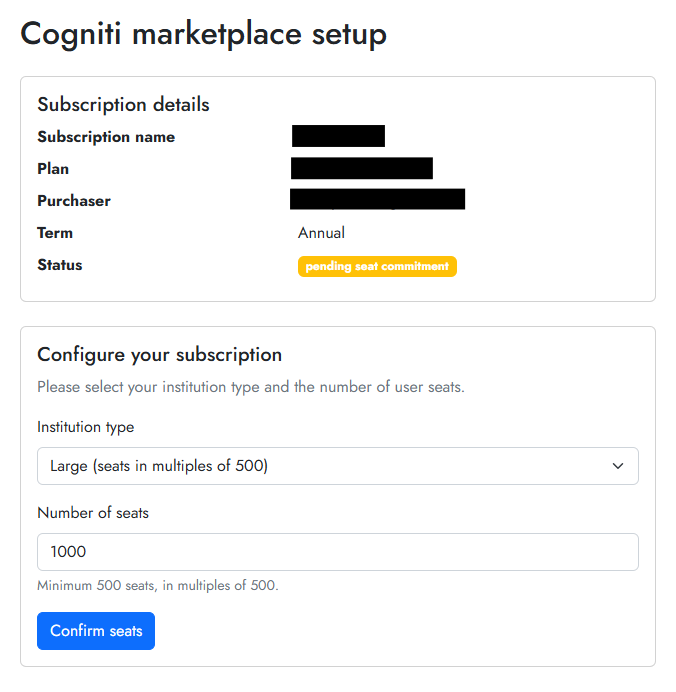
Pick your institution type and then enter the number of seats you wish to subscribe for. Seat counts can be increased during the subscription period at any time. Seat count reductions can be queued at any time and are implemented when the subscription renews.
Click Confirm seats, and you will see a confirmation screen. A Cogniti team member will help you manage the next steps and email you at your email address entered upon subscribing.
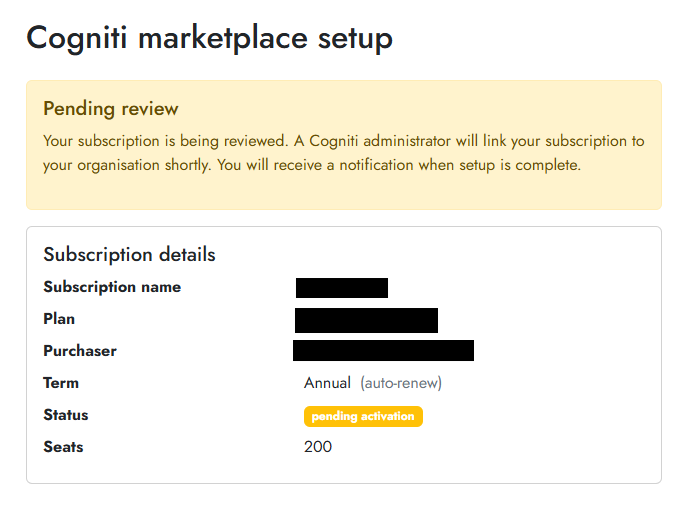
Once your subscription has been confirmed and linked, Cogniti’s servers will communicate back to Microsoft’s servers to activate the subscription. You can view the status of your subscription at any time via the Azure Portal’s SaaS blade. This is where you can unsubscribe as well.