Tags can be used to identify various Cogniti artefacts (e.g. agents, mini apps, sandboxes, etc). Tags can only be set up by administrators, but can be applied to an artefact by any artefact creator.
Setting up organisation-wide tags #
Organisational administrators can set up tags that are available across their organisation.
This section applies to:
✅ Cogniti via Microsoft Marketplace Managed Application
✅ DIY, self-hosted instances of Cogniti
✅ Cogniti on SaaS
Access the organisation-wide tags configuration page via the Tags tab in the organisational administrator screen.
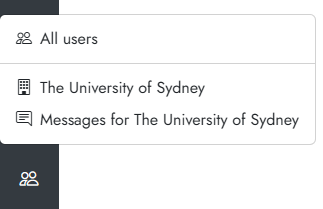
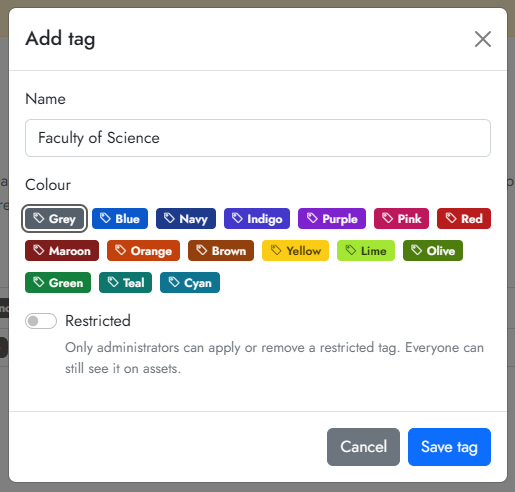
Click the Add tag button. In the dialog, enter a name for the tag and pick a colour. If you’d like only organisational administrators to be able to use this tag, toggle Restricted on.
For example:
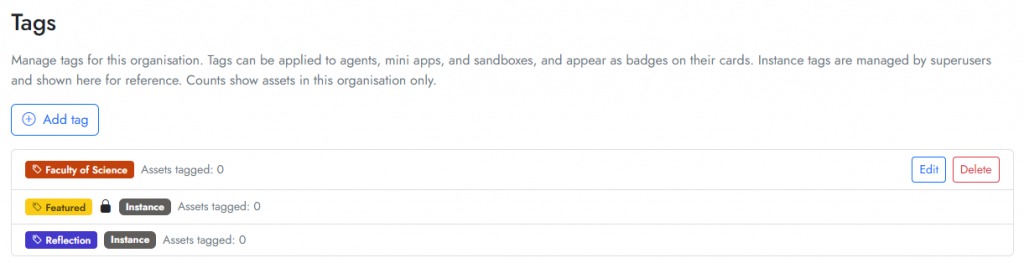
Click Save tag and then Save organisation. The tags available to your organisation will appear in the Tags tab. For example:
Setting up instance-wide tags #
Superusers can set up instance-wide tags that are available across the platform, in all organisations.
This section applies to:
✅ Cogniti via Microsoft Marketplace Managed Application
✅ DIY, self-hosted instances of Cogniti
❌ Cogniti on SaaS (this is managed for you)
Access the instance-wide tags configuration page via the Tags tab in the administrator screen.

Click the Add tag button. In the dialog, enter a name for the tag and pick a colour. If you’d like only superusers to be able to use this tag, toggle Restricted on. For example:
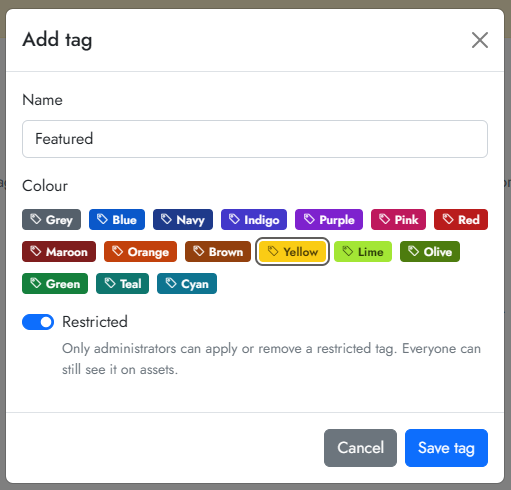
Click Save tag and the new tag will be created immediately.
Deleting tags #
To delete a tag either at the organisation or instance levels, find the tags list and click the Delete button next to the tag. Note that deletion is irreversible and unassociates all existing artefacts with the tag.


