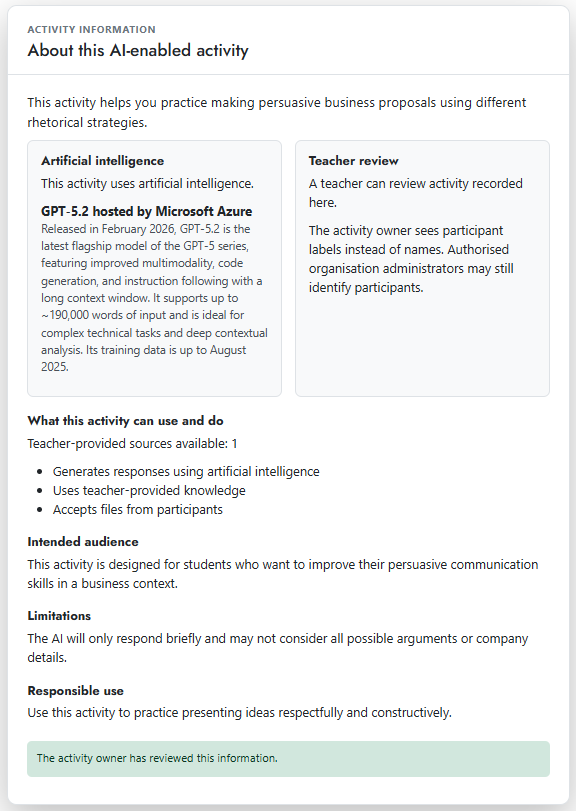
Transparency cards are built into Cogniti agents and mini apps to help students better understand what they are interacting with, why, and what kind of AI interactions may be happening. We believe that better clarity of these helps to build trust and student agency.
Transparency cards were developed in collaboration with Dr Chris Zehntner and Dr Neil Martin from the University of Southern Queensland.
Viewing transparency cards #
Transparency cards are prepared by the creator of the an agent or mini app, and look like this:
Viewing transparency cards in agents #
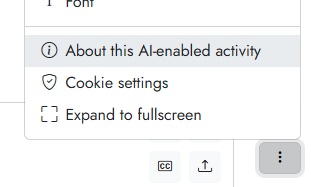
When chatting with an agent, click the kebab menu and select About this AI-enabled activity. This will show the transparency card.
Viewing transparency cards in mini apps #
When interacting with a mini app, click the AI button in the top right. This will show the transparency card.

Editing transparency cards #
Creators of agents and mini apps can edit most of the information shown on transparency cards. Some information is automatically provided by Cogniti.
In the editor page, click Student transparency:

You can enter your own text for each of the fields, or click Generate suggested wording using AI to have Cogniti suggest some wording. These suggestions are derived from the currently saved design of the agent or mini app, so ensure you save the asset before generating. Only the fields that Cogniti can reliably work out will have suggestions presented.
The fields are:
- Purpose
- Intended audience
- Additional capabilities
- Limitations
- Expected riks
- Responsible use
- Accessibility and alternatives
- Support
You do not need to fill in all of these fields. Any missing fields will just not show up to viewers of the transparency cards. You can preview the transparency cards in the same tab.
Once you are happy with the content of the transparency card, you can toggle the Reviewed switch on.

Remember to then save the agent or mini app.


