
Once you create an agent in Cogniti, you can embed this into your Moodle course as an external tool activity to make it easier and more seamless for students to use your agent. This way, they don’t need to create an account, and can use your agents right where they are engaging with learning.
Note: To embed Cogniti into Moodle, your Moodle administrator will need to have added it as an LTI plugin. Ask them to get in touch with us to do so.
Create an agent #
You’ll need to have a Cogniti agent created first.
Embed it as an external tool activity #
Enter edit mode in your Moodle Course.
Add an activity by clicking the Add an activity or resource link.

Depending on your version of Moodle, it may appear like this instead:

Choose Cogniti from the list of activities that appears.

Depending on how your Moodle administrator has set up the connection to Cogniti, you may see a Select content button.
If the Select content button exists #
Click the Select content button.

A dialog will appear allowing you to search and locate the agent you need. Click Select this agent on your chosen agent.
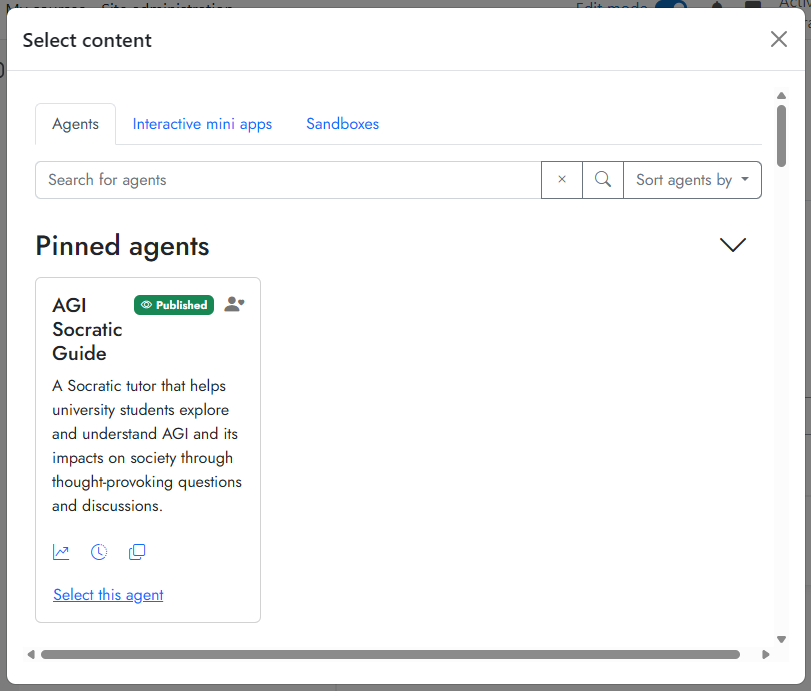
Once the agent is linked successfully, you will see Content selected next to the Select content button.

Click Save and display.

The agent will appear in Moodle as this activity.
If the Select content button does not appear #
Give the activity a name, and click Save and display.

A list of agents will appear. You can search for the agent you need. Locate the agent, and then click Select this agent. This will tell Cogniti which agent to associate with this Moodle activity.

If successfully associated, a message will appear asking you to reload the page.

Reload the page and your agent will appear in Moodle:

Adding other agents #
If you need to select a different agent, repeat the steps above to create a new activity.


